
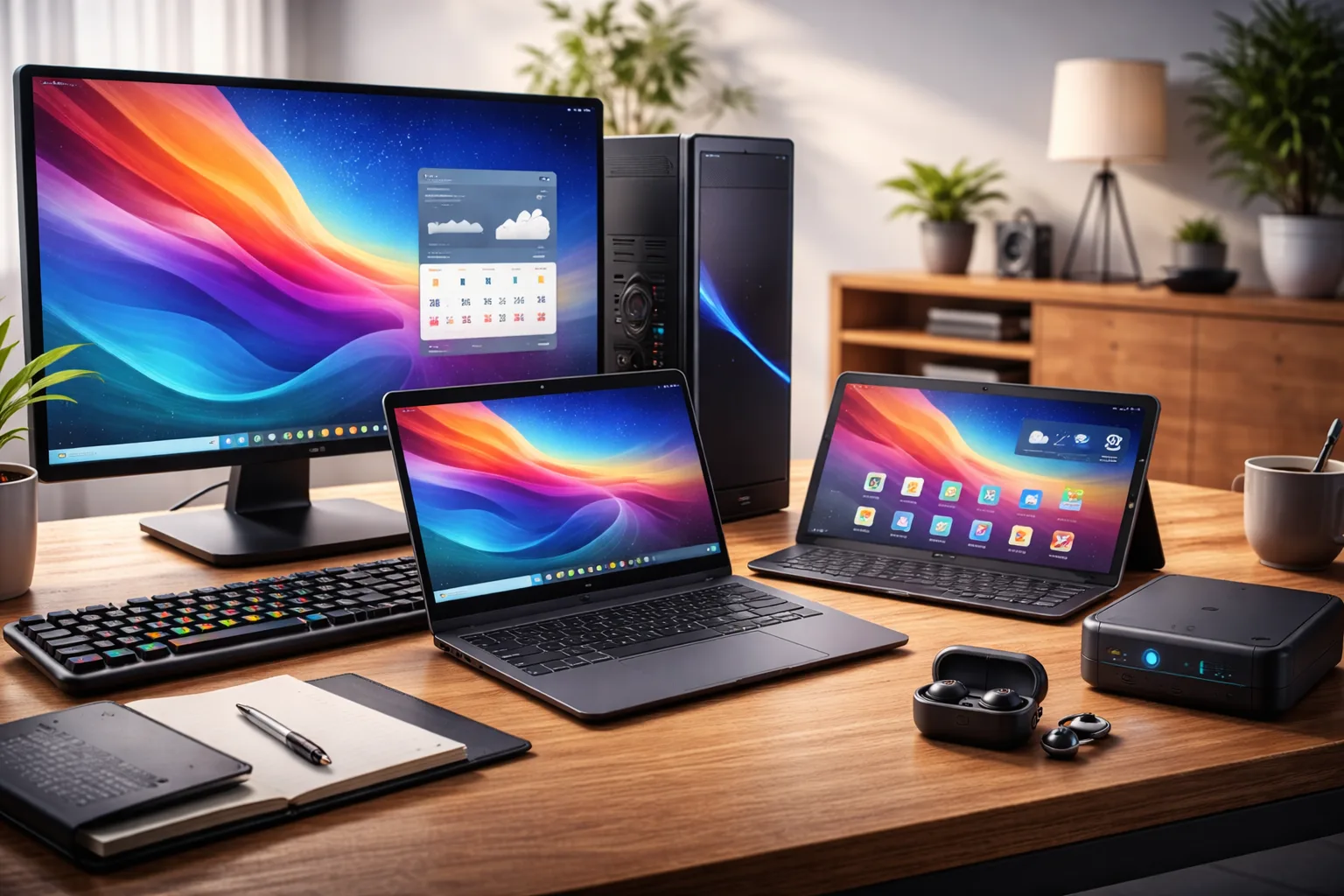
A practical, detailed guide to picking the right device for your work, budget, and lifestyle.
Introduction
If you’re buying a computer today, you have more choices than ever: a powerful desktop PC, a portable laptop, a lightweight tablet, or a small mini PC. They can all browse the web, stream video, and run apps—but they are not equal in performance, portability, upgrade options, and cost.
The best device is the one that matches your daily tasks. This guide will help you compare each option clearly and choose with confidence.
Step 1: Ask Yourself These Questions
- What will I do most? Office work, school, gaming, video editing, programming, browsing?
- Do I need portability? Will I work in multiple places or travel?
- How much performance do I need? Basic tasks vs heavy apps.
- Do I want upgradeability? Want to replace parts later?
- What is my budget? Include accessories like monitor, keyboard, mouse.
- Do I need battery life? Or will I use it plugged in most of the time?
At-a-Glance Comparison
| Device Type | Best For | Main Strength | Main Weakness |
|---|---|---|---|
| Desktop PC | Performance work, gaming, creators | Power + upgrades + best value at high performance | Not portable; needs desk space |
| Laptop | Portability, school, general work | All-in-one mobility (screen + keyboard + battery) | Less upgradeable; can cost more for same power |
| Tablet | Reading, note-taking, media, light work | Ultra portable; great battery; easy to use | Limited desktop software; accessories may be needed |
| Mini PC | Small desks, home office, HTPC, light-to-mid work | Compact, quiet, low power use | Limited upgrades; gaming/graphics may be weaker |
Option 1: Desktop PC
A desktop PC is a stationary computer you use at a desk with a separate monitor, keyboard, and mouse. Desktops can be prebuilt or custom-built, and they usually offer the best performance-per-dollar.
Pros
- Best performance: More power for gaming, video editing, 3D work.
- Upgrade-friendly: Easy to change GPU, RAM, storage, and sometimes CPU.
- Better cooling: Runs cooler and often faster under heavy load.
- Great for multi-monitor setups: Ideal for productivity.
Cons
- Not portable: Stays in one place.
- Needs accessories: Monitor, keyboard, mouse (adds cost).
- Takes space: Especially larger towers.
Choose a desktop if: you want maximum power, plan to upgrade later, or want the best gaming experience.
Option 2: Laptop
A laptop is a portable all-in-one computer with a built-in screen, keyboard, trackpad, speakers, and battery. It’s the most common choice for students and people who move between home, school, and work.
Pros
- Portable: Work from anywhere with Wi-Fi.
- All-in-one: No extra monitor needed (but optional).
- Battery-powered: Useful during travel or power outages.
- Great for everyday work: Docs, meetings, browsing, coding.
Cons
- Less upgradeable: Often limited to storage and RAM (if that).
- Costs more for the same power compared to desktops.
- Thermal limits: Heavy workloads may run slower over time.
Choose a laptop if: you need portability, want an all-in-one device, or move between locations often.
Option 3: Tablet
Tablets are lightweight touch-screen devices (like iPad or Android tablets). They are excellent for media, reading, note-taking, casual games, and some productivity. With a keyboard case, a tablet can handle many tasks—but it is still different from a full computer.
Pros
- Very portable: Thin, light, easy to carry.
- Great battery life: Often lasts all day.
- Simple experience: Quick startup and easy apps.
- Best for notes & drawing: Especially with a stylus.
Cons
- Limited desktop software: Some pro apps are missing or different versions.
- Multitasking limits: Better than before, but not the same as a full PC.
- Accessories add cost: Keyboard, stylus, hub, etc.
Choose a tablet if: you want maximum portability for light tasks, reading, meetings, travel, or note-taking.
Option 4: Mini PC
A mini PC is a small desktop computer—often the size of a book or even smaller. You still need a monitor, keyboard, and mouse, but mini PCs save space and often run quietly. Many are great for office tasks, web browsing, and light content creation.
Pros
- Small footprint: Great for small desks and clean setups.
- Quiet and efficient: Often uses less electricity.
- Good for home office: Reliable for everyday tasks.
- Flexible placement: Some mount behind a monitor.
Cons
- Limited upgrades: Usually only storage and sometimes RAM.
- Graphics limits: Many rely on integrated graphics (not ideal for heavy gaming/3D).
- Accessory needed: Monitor and peripherals still required.
Choose a mini PC if: you want a compact desktop for productivity, a media center, or a tidy home-office setup.
Which One Is Best for Your Use Case?
Work / Office Tasks
- Best choices: Laptop, Mini PC, Desktop
- Best setup: Any device + external monitor for comfort
Students
- Best choices: Laptop (most common), Tablet (notes + reading)
- Great combo: Laptop + tablet for handwritten notes
Gaming
- Best choice: Desktop PC (highest performance)
- Also works: Gaming laptop (portable but more expensive for same power)
Content Creation (Photo/Video/Design)
- Best choices: Desktop (best power), strong laptop (portable creators)
- Less ideal: Tablet-only (depends on your workflow and apps)
Programming / Coding
- Best choices: Laptop (portable dev), Desktop (power), Mini PC (clean desk)
- Tablet: Useful for reading docs and notes, less ideal as the only device
Travel / Mobility
- Best choices: Laptop or Tablet
- Mini PC/desktop: Not ideal unless you have a fixed second location
Cost Reality: Don’t Forget Accessories
The device price is not the only cost. Consider:
- Desktop/Mini PC: You may need a monitor, keyboard, mouse, speakers/webcam.
- Laptop: You might still want a larger monitor for comfort.
- Tablet: Keyboard + stylus + hub can increase total cost a lot.
Step-by-Step Decision Checklist
- List your top 3 tasks (work, school, gaming, editing, coding).
- Decide if portability is required (yes/no).
- Choose your performance level (basic, mid, heavy).
- Pick the device type that matches: desktop, laptop, tablet, or mini PC.
- Plan your accessories (monitor, keyboard, mouse, storage, dock).
- Buy within your budget and prioritize comfort (screen size, keyboard quality, ergonomics).
Conclusion
Desktop PCs, laptops, tablets, and mini PCs all have strengths. The “best” choice depends on your real daily use—especially performance needs and portability.
Choose the device that makes your work easier, fits your space, and stays inside your budget. If you’re still unsure, start with a laptop for flexibility or a mini PC for a clean, affordable desk setup.