
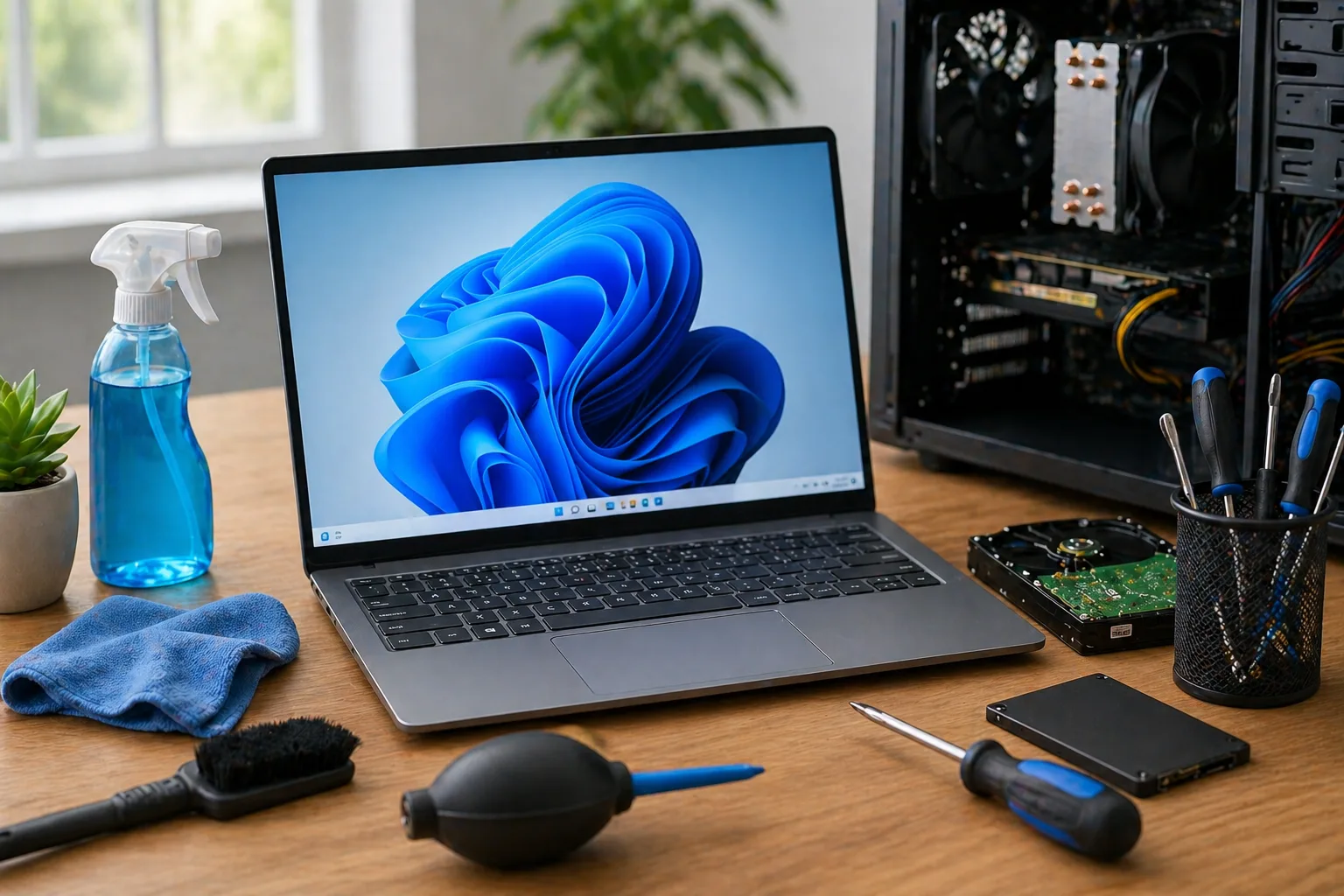
A detailed, informative, helpful, and easy-to-read guide to keeping your Windows computer faster, cleaner, safer, and more reliable.
A Windows PC needs regular maintenance to keep running well. Over time, a computer can become slower because of too many startup apps, low storage space, outdated software, malware, dust buildup, or system errors. The good news is that many maintenance tasks are simple and can be done without being a computer expert.
Good Windows maintenance helps improve performance, reduce crashes, protect your files, increase security, and extend the life of your computer. Whether you use your PC for work, school, gaming, browsing, coding, or business, a clean and organized system makes daily use much easier.
1. Keep Windows Updated
Windows updates help fix bugs, improve stability, and protect your computer from security threats. Microsoft explains that Windows updates include security improvements and help keep the PC more current and secure.
How to check for updates:
- Click Start.
- Open Settings.
- Go to Windows Update.
- Click Check for updates.
- Install available updates and restart if needed.
If you use Windows 10, remember that regular Windows 10 support ended on October 14, 2025. For better long-term security, consider Windows 11 if your computer supports it, or use an official extended security update option if available.
2. Free Up Storage Space
Low storage space can slow down your PC and may prevent Windows updates from installing properly. Microsoft recommends using Storage Sense to automatically remove temporary files and items you no longer need.
How to use Storage Sense:
- Open Settings.
- Go to System.
- Select Storage.
- Turn on Storage Sense.
- Review cleanup recommendations before deleting files.
Be careful with the Downloads folder. Some cleanup tools can delete files from Downloads if you allow them, so always check what is selected before cleaning.
3. Uninstall Apps You Do Not Use
Unused programs can take storage space, add background processes, and sometimes slow startup. Removing apps you no longer need keeps the system cleaner.
How to uninstall apps:
- Open Settings.
- Go to Apps.
- Select Installed apps.
- Find apps you no longer use.
- Choose Uninstall.
4. Manage Startup Apps
Some apps automatically start when Windows starts. Too many startup apps can make your PC boot slowly and feel heavy right after logging in.
How to manage startup apps:
- Press Ctrl + Shift + Esc to open Task Manager.
- Select Startup apps.
- Disable apps that do not need to start automatically.
Do not disable security software or important device-related tools unless you know what they do.
5. Run a Security Scan
Malware and unwanted software can slow down your computer, steal information, show pop-ups, or cause strange behavior. Windows Security is built into Windows and can scan your device for threats.
How to run a scan:
- Open Windows Security.
- Go to Virus & threat protection.
- Select Quick scan or Scan options.
- Run a Full scan if you suspect a problem.
Keep real-time protection turned on for better safety.
6. Back Up Important Files
Maintenance is not only about speed. It is also about protecting your data. A computer can fail, get infected, or be damaged. Backups help protect your photos, documents, videos, projects, and important files.
Good backup options include:
- External hard drive or SSD
- Cloud storage
- Windows Backup
- File History, if available
- Manual copy of important folders
A good rule is to keep more than one copy of important files. If a file matters, do not keep it in only one place.
7. Optimize Drives
Windows includes a tool called Defragment and Optimize Drives. For hard disk drives, it can defragment data. For SSDs, Windows performs the correct optimization for that drive type. Microsoft provides this built-in tool to help keep drives performing well.
How to optimize drives:
- Click the Search bar.
- Type Defragment and Optimize Drives.
- Open the tool.
- Select the drive.
- Click Optimize.
Windows often runs this automatically, but checking it occasionally can help confirm everything is working.
8. Keep Drivers Updated Carefully
Drivers help Windows communicate with hardware such as graphics cards, Wi-Fi adapters, printers, audio devices, and chipsets. Driver updates can fix problems or improve performance, but installing random drivers from unsafe websites can create issues.
Safer driver sources include:
- Windows Update
- Your PC manufacturer’s support page
- Your graphics card manufacturer’s official software
- Your motherboard manufacturer’s official website
9. Check Task Manager for Heavy Usage
If your PC feels slow, Task Manager can show what is using the most CPU, memory, disk, or network resources.
How to check:
- Press Ctrl + Shift + Esc.
- Go to the Processes tab.
- Sort by CPU, Memory, Disk, or Network.
- Look for apps using unusually high resources.
If one app is always using too many resources, update it, reinstall it, change its settings, or remove it if you do not need it.
10. Restart the PC Regularly
Many people leave their computer running for days or weeks. Restarting can clear temporary issues, finish updates, refresh memory, and fix small glitches.
Restarting once in a while is a simple habit that can prevent many small problems from building up.
11. Clean the Desktop and Organize Files
A messy desktop can make it harder to find files and may slow down some systems visually. Keeping files organized makes the PC easier to use.
Helpful organization tips:
- Create folders for documents, work, school, photos, and downloads
- Move old files to archive folders
- Delete duplicate files carefully
- Keep only important shortcuts on the desktop
- Back up important folders regularly
12. Clean Dust From the Computer
Physical cleaning is important too. Dust can block airflow, make fans louder, and cause higher temperatures. A hot PC may slow down or shut down unexpectedly.
Basic cleaning tips:
- Turn off and unplug the computer first
- Use compressed air carefully
- Clean vents and fans
- Do not use liquid directly on internal parts
- Keep the PC off the floor if dust is heavy
13. Check Temperature and Fan Noise
Loud fans, sudden shutdowns, or slow performance during heavy use can be signs of overheating. Cleaning dust, improving airflow, and making sure fans work properly can help.
If temperatures stay too high, the PC may need better cooling, new thermal paste, or professional inspection.
14. Keep Browsers Clean
Web browsers can collect many extensions, cookies, cached files, and background processes. Too many browser extensions can slow browsing and may create privacy or security risks.
Browser maintenance tips:
- Remove extensions you do not use
- Clear browsing data when needed
- Keep the browser updated
- Avoid suspicious download buttons
- Use strong passwords and two-factor authentication when possible
15. Use System Restore Points Before Big Changes
A restore point can help you roll back certain system changes if something goes wrong after installing drivers, updates, or software. It is not a replacement for file backup, but it can be useful for system recovery.
Before major changes, consider creating a restore point so you have an easier recovery option.
Common Windows PC Maintenance Mistakes
- Ignoring updates for too long
- Letting the drive become almost full
- Installing too many startup apps
- Downloading drivers from unsafe websites
- Never backing up important files
- Using many browser extensions without checking them
- Ignoring loud fans and overheating
- Deleting system files without understanding them
Simple Maintenance Schedule
Weekly
- Restart the PC
- Check Windows Update
- Empty unnecessary temporary files
- Review Downloads folder
Monthly
- Run a full security scan
- Review startup apps
- Uninstall unused apps
- Back up important files
- Check storage space
Every Few Months
- Clean dust from vents and fans
- Review installed browser extensions
- Check drive health if you have important data
- Organize important folders
Conclusion
Maintaining a Windows PC is not difficult when you follow simple habits. Keep Windows updated, clean up storage, manage startup apps, scan for threats, back up important files, organize your folders, and keep the computer physically clean.
Regular maintenance can help your PC run faster, last longer, and stay safer. Small actions done consistently are much better than waiting until the computer becomes slow, unstable, or full of problems.