
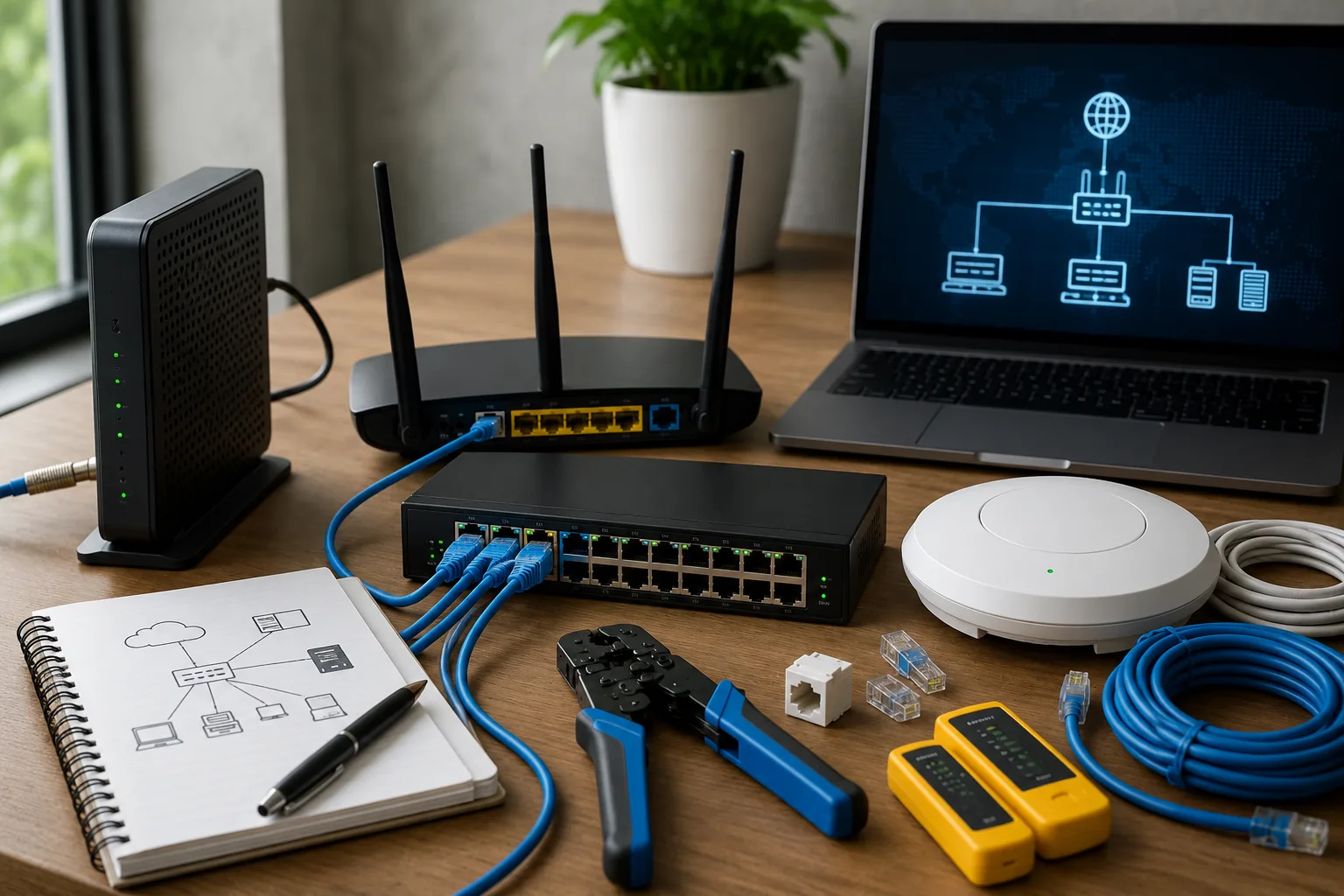
A computer network is a group of devices connected together so they can share internet, files, printers, applications, and other resources. Networks are used everywhere, including homes, offices, schools, warehouses, stores, and data centers. Building a computer network may sound difficult at first, but when you understand the basic parts and steps, it becomes much easier.
This guide explains what a computer network is, what equipment you need, how to plan it, and how to build a simple, safe, and reliable network.
What Is a Computer Network?
A computer network is a system that allows computers and other devices to communicate with each other. These devices may include desktop computers, laptops, phones, tablets, printers, security cameras, smart TVs, servers, and storage devices.
A network can be small, like a home Wi-Fi network, or large, like a company network with hundreds or thousands of devices.
Why Build a Computer Network?
Building a computer network gives you many benefits. It helps devices work together and makes internet access easier to manage.
- Share internet: Many devices can use one internet connection.
- Share files: Computers can send and receive files across the network.
- Use shared printers: Multiple users can print from one printer.
- Connect smart devices: Cameras, phones, TVs, and smart home devices can communicate.
- Use servers: A server can store files, host websites, or run applications.
- Improve control: You can manage users, security, and network access better.
Basic Parts of a Computer Network
1. Modem
A modem connects your home or business to your internet service provider. Some internet providers use a cable modem, fiber modem, or gateway device.
2. Router
A router connects your local network to the internet. It gives devices IP addresses, directs traffic, and often includes firewall features. In many homes, the router also provides Wi-Fi.
3. Switch
A switch allows many wired devices to connect using Ethernet cables. If your router does not have enough Ethernet ports, a switch gives you more ports.
4. Access Point
An access point provides Wi-Fi coverage. Some routers already include Wi-Fi, but larger homes or offices may need extra access points for better signal.
5. Ethernet Cables
Ethernet cables connect wired devices such as computers, switches, routers, printers, and servers. Cat5e, Cat6, and Cat6a cables are common choices.
6. Network Devices
These are the devices that use the network, such as computers, phones, tablets, printers, cameras, servers, and smart devices.
Wired Network vs. Wireless Network
Wired Network
A wired network uses Ethernet cables. It is usually faster, more stable, and more secure than Wi-Fi. Wired connections are best for desktop computers, servers, gaming systems, security cameras, and smart TVs.
Wireless Network
A wireless network uses Wi-Fi. It is convenient because phones, laptops, and tablets can connect without cables. Wi-Fi is best for mobile devices and areas where cables are not easy to install.
A good network often uses both wired and wireless connections. Important devices can use Ethernet, while mobile devices use Wi-Fi.
Step 1: Plan Your Network
Before buying equipment, think about what your network needs to do. A good plan helps avoid weak Wi-Fi, slow speeds, and messy cable setups.
- How many devices will connect?
- Do you need Wi-Fi in every room?
- Will you use cameras, printers, or servers?
- Do you need guest Wi-Fi?
- Do you need fast wired connections?
- Where will the router and modem be placed?
Step 2: Choose the Right Equipment
For a simple home network, you may only need a modem, router, and Wi-Fi. For a stronger network, you may need a switch, access points, and Ethernet cables.
If you want a small office or advanced home network, choose equipment that supports modern security, good Wi-Fi coverage, and enough Ethernet ports.
Step 3: Set Up the Modem and Router
Connect the modem to the internet line from your provider. Then connect the router to the modem using an Ethernet cable. After that, power on the modem first, wait for it to connect, and then power on the router.
Most routers have a setup page or mobile app that helps you create your Wi-Fi name and password.
Step 4: Create a Safe Wi-Fi Network
Wi-Fi security is very important. A weak password or old security setting can allow strangers to use your internet or access your devices.
- Use a strong Wi-Fi password.
- Use WPA2 or WPA3 security if available.
- Change the default router admin password.
- Do not use your personal name or address as the Wi-Fi name.
- Create a separate guest Wi-Fi network for visitors.
Step 5: Connect Wired Devices
Connect important devices with Ethernet cables when possible. Wired connections are usually best for devices that need stable speed, such as computers, network storage, servers, cameras, and streaming devices.
If you need more Ethernet ports, connect a switch to the router. Then connect your wired devices to the switch.
Step 6: Place Wi-Fi Devices Correctly
Router and access point placement affects Wi-Fi performance. Place the router in a central area, away from thick walls, metal objects, microwaves, and other electronics that may cause interference.
If your Wi-Fi signal is weak in some rooms, add an access point or mesh Wi-Fi system.
Step 7: Set Up IP Addresses
Most home networks use DHCP, which automatically gives IP addresses to devices. This is easy and works well for most users.
Some devices may need a fixed IP address, especially printers, servers, network storage, and security cameras. A fixed IP makes the device easier to find on the network.
Step 8: Test the Network
After everything is connected, test your network to make sure it works properly.
- Check if devices can access the internet.
- Test Wi-Fi in different rooms.
- Run a speed test near the router and far from the router.
- Check if wired devices connect correctly.
- Test printers, cameras, or shared folders if you use them.
Step 9: Secure Your Network
Network security helps protect your data, devices, and privacy. Even a small home network should have basic protection.
- Keep your router firmware updated.
- Use strong passwords for Wi-Fi and router login.
- Turn off WPS if you do not need it.
- Use guest Wi-Fi for visitors and smart devices.
- Do not open ports unless you understand the risk.
- Use a firewall when available.
Step 10: Keep the Network Organized
A clean and organized network is easier to manage. Label cables, write down device names, and keep a simple network diagram. This helps when troubleshooting problems later.
Common Network Problems and Simple Fixes
Slow Internet
Restart the modem and router, test with a wired connection, check your internet plan speed, and make sure no device is using too much bandwidth.
Weak Wi-Fi Signal
Move the router to a better location, reduce interference, or add an access point or mesh Wi-Fi system.
Device Cannot Connect
Check the Wi-Fi password, restart the device, forget and reconnect to the network, or check if the router is blocking the device.
Printer Cannot Be Found
Make sure the printer is connected to the same network. A fixed IP address can also help keep the printer easier to find.
Example of a Simple Home Network
A simple home network may look like this:
Internet Service Provider
        |
      Modem
        |
      Router
     /      \
  Wi-Fi    Ethernet Switch
             /     |     \
        Computer Printer Server
Best Practices for a Better Network
- Use Ethernet for important devices.
- Use strong passwords.
- Keep router software updated.
- Separate guest devices from personal devices.
- Place Wi-Fi equipment in open, central locations.
- Use quality cables and reliable equipment.
- Document your setup for easier troubleshooting.
Conclusion
Building a computer network is not only for experts. With the right plan and equipment, anyone can create a network that is fast, safe, and reliable. Start with the basics: modem, router, Wi-Fi, Ethernet cables, and connected devices. Then improve your network with switches, access points, stronger security, and better organization as your needs grow.
A well-built computer network helps your devices work together, improves internet access, and gives you more control over your home or business technology.